Wednesday, July 22, 2009

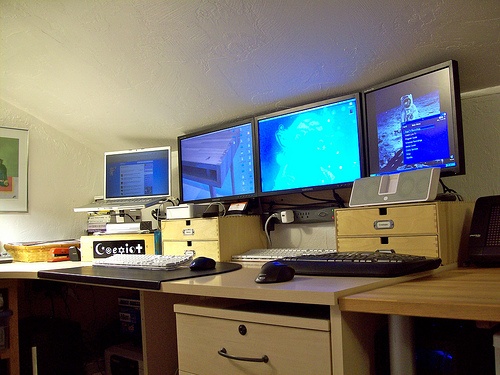
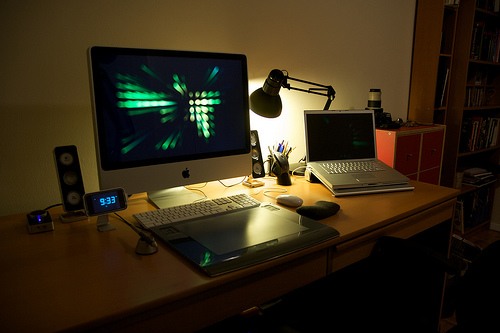
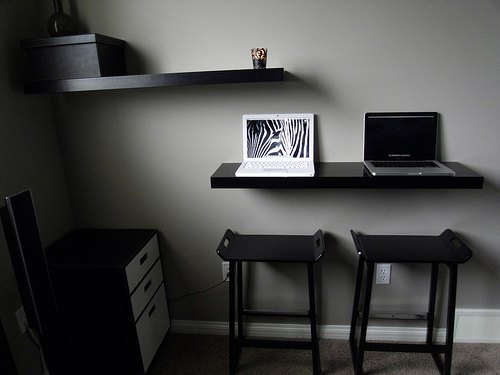
25 Elegant Workstations for Your Inspiration

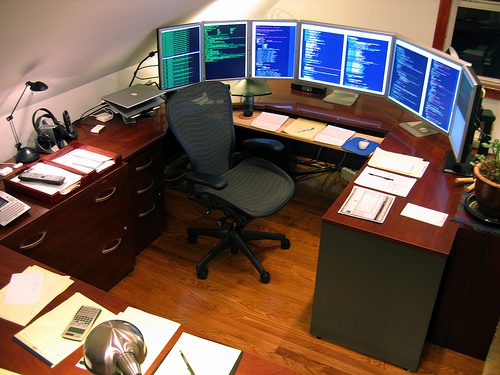
Whether you work on a Mac, a PC, or both - the way your workstation is set up reveals a lot about your sense of style and work attitude. Have a comfortable place where you can do your work can lead to increased creativity and productivity.

This collection presents some excellent examples of elegant, beautiful, cozy, and well-designed workspaces so that you might get some ideas and inspiration from them.

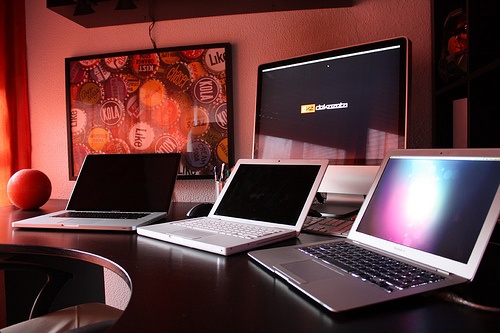
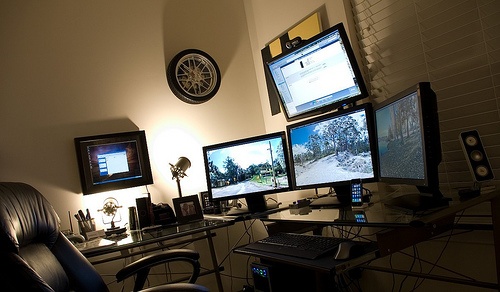
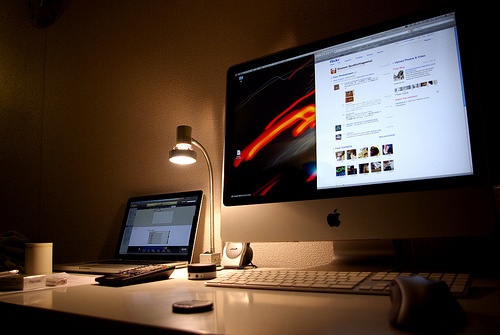
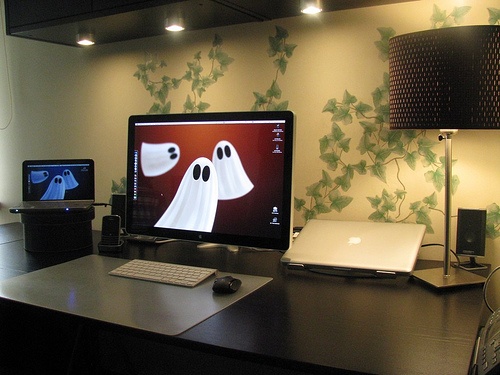
1. Workspace by Hey Brad

Workspace by Hey Brad

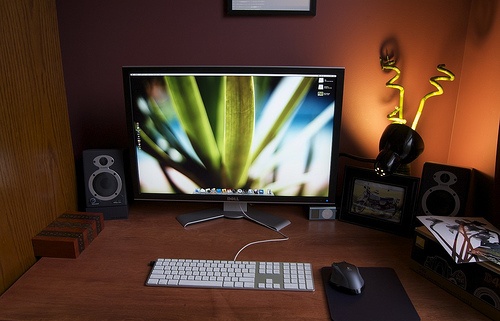
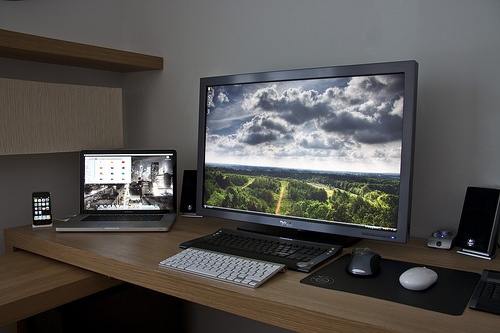
2. Foto de Familia: iMac, Macbook, Macbook Pro & Macbook Air

Foto de Familia

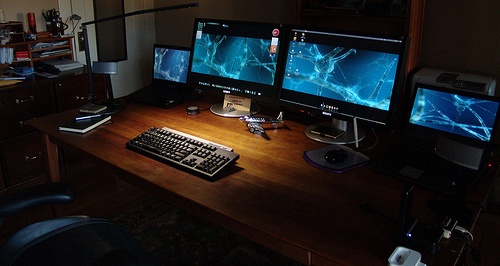
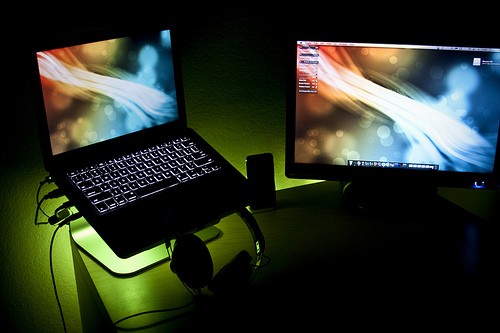
3. CodyRS Mac Setup

CodyRS

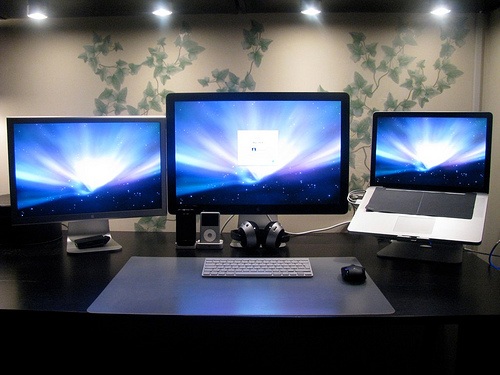
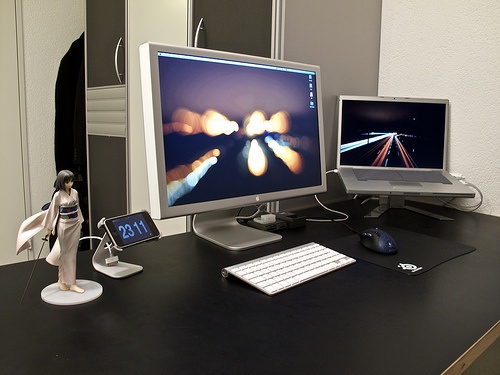
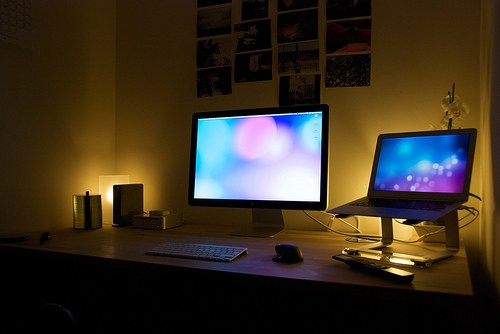
4. 2 Apple Cinema Displays and Macbook Pro

2 Apple Cinema Displays and Macbook Pro

5. Apple Fanboy? by sandercw

Apple Fanboy? by sandercw

6. SonyLand by Uberrob

SonyLand by Uberrob

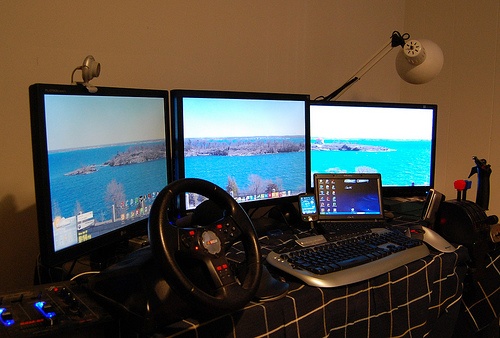
7. Triple monitor setup by tigersharkbas

Triple monitor setup by tigersharkbas

8. Battlefan’s Workspace

Battlefan's Workspace

9. Justin Griswold’s Desk

Justin Griswolds Desk

10. Simbe90 Desk Setup

Simbe90 Desk Setup

11. Workspace 2.1 by Yves Huy Truong

Workspace 2.1 by Yves Huy Truong

12. Current workspace setup by Rodrigo Haenggi

Current workspace setup by Rodrigo Haenggi

13. iMac and MacBook

iMac and MacBook

14. Mr billiam’s Desk

Mr billiam's Desk

15. 2 Apple Cinema Displays and Macbook Pro by Psleda

2 Apple Cinema Displays and Macbook Pro by Psleda

16. Work space, games space

Work space, games space

17. The Newness

The Newness

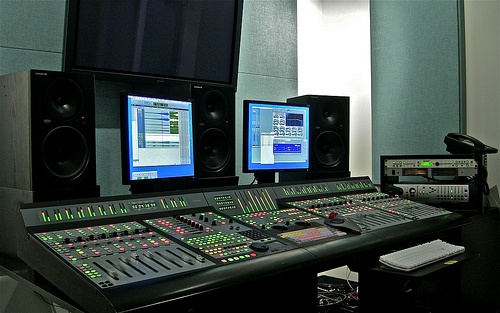
18. Stage C at Novastar Post in Hollywood, CA

Stage C at Novastar Post in Hollywood, CA

19. May ‘09 Desktop by Psleda

Desktop by Psleda

20. 9920 x 1600 pixels

9920 x 1600 pixels

21. David Bosman’s Workspace

David Bosman's Workspace

22. Workspace by No Robotocha!

Workspace by No Robotocha!

23. Home Office by SeanOsteen

Home Office by SeanOsteen

24. Setup by Austin Grade

Setup by Austin Grade

25. My Rig: 2009 Edition by FlySi

My Rig: 2009 Edition by FlySi

Show us your own workstations

Do you have a photo of your workspace? Why don’t you show it off to us by linking to it in the comments!


7 Ways to Build Trust on a Portfolio Site

7 Ways to Build Trust on a Portfolio Site

1. About Us Page

Clients will feel more comfortable working with you if they know a little bit more about you as a person or company. Let people get to know you instead of appearing as a distant entity with no emotions or history. You don’t have to tell them what you eat for breakfast, but let people know who you are, what you are about and how your business can benefit them.

portfolio-tips

2. Full Contact Details

The more contact information you have the better. You may prefer only using certain contact methods, but really you need to make the potential client feel comfortable and you will build more trust if you display a variety of contact information including an office phone number, fax, email, and physical address. This information should be displayed on your contact page, about page and even in the header or footer. Make it easy for people to contact you if they need to!

3. Previous Clients List

The portfolio is what most people will go straight for and that’s why it needs to be the best part of your site. You need at least 6-12 pieces in your portfolio, they should be current and you should have information about each project. You should also considering including a page specifically for a previous client list if you have had a lot of clients or well known clients.

Working with brand names of any scale can be a great confidence booster for interested clients, especially if they can relate to one of your previous clients. For example some one with a construction business might be happy to see you have done some great work already for other construction companies.

4. Trust Building Graphics

If people are ordering from your site you should consider adding some trust building graphics such as a PayPal verified logo, SSL certificate symbol, secure checkout graphic and so on. These kind of graphics can make people feel more secure about ordering design services from you online.

5. Organization Memberships

Joining design organizations such as the AIGA and actually taking part in them is not only a great way to be more involved in your industry, but it can show clients you really care about your craft. Feel free to display the organization logos on your website and many organizations already have pre-made member only graphics you can display when you join.

6. Explain the Process

Visitors are coming to your site for information so they can make the best judgment about who to have design their projects. If you explain the process from start to finish and guide customers every step of the way, they will be much more likely to want to work with you. They will feel more knowledgeable and comfortable knowing they have an idea of how it will all work. You should consider creating a page for this or you could create something a little simpler such as a FAQ ( Frequently Asked Questions ) page.

7. Professional Website

This one is pretty obvious, but a lot of designers do not have nice portfolio site. Even if you are not a web designer you still need a nice looking website, because the quality of your website will reflect back on you. If you can’t stand doing website designs or are having trouble finding a good web designer, try purchasing and or modifying a pre-made website template.

There are a lot of websites out there that offer both HTML and WordPress theme portfolio templates, which make it super easy to put up a nice fresh looking portfolio website, ready to attract new clients.

Hope you enjoyed these trust building portfolio site tips!


Tuesday, July 21, 2009

15 Really Useful Web-based HTML Editors

Web-based HTML Editor, WYSIWYG editor, or rich text editor, is a web component that let users enter rich text input within the browser. Most of the time, these html editors are used within content management systems where administrators or authors can easily create posts and contents from the backend system.

Without talking much, let’s see these powerful Web-based HTML Editors.

1. FCKeditor

FCKeditor is one of the most famous online HTML editor. It brings the power and features of desktop editors to the web. It offers a complete integration pack for ASP, ASP.NET, PHP, Java, Perl, Phyton and etc. It supports skins, spell checker, lightweight, fast and has a lot of cool features.
FCKeditor

2. NicEdit

NicEdit is a Javascript that integrates into any web page easily. It can turns any element/div to become editable or convert standard textareas to rich text editing.
NicEdit

3. TinyMCE

TinyMCE is an online wysiwyg html editor released under LGPL license. Like other wysiwyg html editors, it is able to convert textarea or other html elements to editor instances.
TinyMCE

4. jwysiwyg

jwysiwyg is a jQuery WYSIWYG plugin with a tiny size (7kb packed). It is very simple and without much features.
jwysiwyg - jQuery WYSIWYG plugin

5. Yahoo! UI Library: Rich Text Editor

The Rich Text Editor is part of the Yahoo YUI library and users can easily extend the features via creating plugin for it. It is very suitable for those who already familiar with other controls from YUI library.
Yahoo! UI Library: Rich Text Editor

6. Xinha

Xinha is a powerful WYSIWYG HTML editor component that works in all current browsers. It is built by the open source community, and everyone are welcome to contribute to the project.
xinha

7. Openwysiwyg

Openwysiwyg is yet another powerful open source cross browser WYSIWYG editor that contains a lot of features. It enhances table creation and you can easily create tables and customize them with built-in properties.
openwysiwyg: Free cross browser wysiwyg editor

8. Free Rich Text Editor

Free Rich Text Editor is an extremely easy to use FREE javascript based HTML WYSIWYG editor for your website. It is easy to implement and manage to output XHTML compliant code.
Free Rich Text Editor

9. WMD: The Wysiwym Markdown Editor

WMD is a simple and lightweight HTML editor which can be used in blog comment section or forum posts.
WMD: The Wysiwym Markdown Editor

10. TTW HTML Editor

TTW HTML Editor is a very simple wysiwyg html editor that powered by javascript. Its spell checking feature is powered by SpellerPages, which can easily being implemented by adding parameter to the editor.
TTW HTML Editor

11. Free Text Box

FreeTextBox is the most-used HTML editor for ASP.NET. It is compatible with IE on the PC, and Mozilla and Firefox on all platforms.
Free Text Box

12. WYMeditor

WYMeditor is a web based XHTML editor. WYMeditor has been created to generate perfectly structured XHTML strict code, to conform to the W3C XHTML specifications and to facilitate further processing by modern applications.
WYMeditor

13. BlueShoes Wysiwyg Editor

It is a DHTML and Javascript based editor which has a lot of cool features. For example, user can easily resize the editor, select special characters, and pick color using the color picker tool.
BlueShoes Wysiwyg Editor

14. markItUp

markItUp! is a JavaScript plugin built on the jQuery library. It is very lightweight and very customizable. You can even define your favorite keyboard shortcuts, which adds extra user friendly feature.
markItUp! Universal markup editor

15. SPAW Editor

It is a web based WYSIWYG editor which had tabbed multi-document interface, floating/shared toolbars and a very cool interface. It is available in PHP and .NET versions.
spaw-editor


How to make URLs user-friendly

Summary: One of the worst elements of the web from a user interface standpoint is the URL. However, if they're short, logical, and self-correcting, URLs can be acceptably usable.

Before I delve into this topic, I must admit that I haven't yet decked out my site with friendly URLs. But I'll get right on it! :-)

I hate typing URLs, and I'm sure that millions of other internet users do too. For some time, I had gotten used to bookmarking, but then my bookmark lists became really long, and suffered from extensive linkrot (when pages disappear from where they used to be). Then Netscape surprised me with a nice feature: if I wanted to go to a given .com site, all I needed to do was type the middle part of the name, say, "yahoo", and it would direct me to the right place. But then .net and .org sites started getting popular, and I had to specify the full URL most of the time.

I started running into even bigger problems when I had to write down (on paper, with a pen) a URL, or say it out loud to someone over the phone. Yahoo! is a great place to do research, but their long and complicated (if logical) URLs are absolutely useless once you leave the realm of computer-aided communication. Collaboration over the phone can be tough if you rely on one of the web's best resources; few people have a setup that lets them do everything digitally, everywhere (in libraries, movie theatres, and so on). And I don't know of any other way of telling someone a URL over the phone (not until we get simultaneous instant messaging and voice phones, anyway).

Four characteristics that make URLs user-friendly

  • short
  • lowercase
  • plain language
  • conventional
  • self-correcting

I don't think I've ever seen URLs that have all four characteristics of user-friendliness. Yahoo's URLs tend to be in plain language, but they certainly aren't short or lowercase. They're not conventional or self-correcting either.

A definition of short

I define short URLs to be no more than two levels deep (i.e. example.com/jobs/toronto/) and consisting of no hyphenated, underscored, or lengthy versions of words. How does this work?

  • Instead of "example.com/employment/greater_toronto_area/", use "example.com/jobs/toronto"
  • Instead of buying "sultans-of-swing.org", buy "sos.org", "sultansos.org", or "swingsultans.org"

Short URLs are better because they're easier to type, easier to remember, and easier to write down or say out loud in conversation.

A definition of lowercase

I'm not sure this needs any explanation, but just in case: lowercase means no capital letters.

  • Instead of "example.com/Employment/Greater_Toronto_Area/", use "example.com/jobs/toronto"

URLs with mixes of capital and lowercase letters are harder to type than all-lowercase URLs, hard to remember, and hard to say out loud in conversation.

A definition of plain language

I'm basing this guideline on English, but it probably applies to many other languages as well.

For heaven's sake, don't use technical jargon or strange abbreviations in URLs. Don't use symbols and codes. Think of how users perceive the thing you're trying to position on the website:

  • Instead of "example.com/Employ/loc?=$GTA_Toronto/", use "example.com/jobs/toronto"
  • Instead of "example.com/prods/RAM/", use "example.com/products/memory/", or better yet, "example.com/memory/"

Yes, URLs in plain language are easier to remember, say, write down, and type. A lot of people don't even know that~ is a "tilde". To them it's just a squiggly thing. "So you go to example dot com, and then a slash, then a squiggly thing..."

A definition of conventional

Being conventional in URLs is tougher than the other guidelines, but it's just as important. If most websites use the directory /jobs/ to show employment opportunities, don't use /careers/ or /employment/ or anything else. Being conventional is about anticipating the user's expectations based on Nielsen's Law of the Internet User Experience: users spend most of their time on other sites. If those other sites use specific terminology in their URLs, every site should.

  • Instead of "example.com/careers/greatLakesRegion/", use "example.com/jobs/toronto"
  • Instead of "pop3.example.com", use "mail.example.com"

Being conventional isn't a bad idea for other aspets of web design either: feel free to stop using the term "user ID" any time!

And of course, conventional URLs are easier to remember, because there's nothing special or unique about the URL to remember other than the domain name.

A definition of self-correcting

Self-correcting URLs are the best: imagine, if you accidentally type in /Jobs/ instead of /jobs/, or /emplyment/ instead of /employment/, or even /employment/ instead of /jobs/, the web server compensates and directs you to the right place. Pure genius, and it doesn't have to break the back button. In saying that, I advise against using META tags to redirect users. That causes very annoying back button behaviour.

Amazingly, if you're using Apache (a common web server), a little .htaccess configuration can do the trick of correcting URLs. But how do you define the rules for correction?

  • common spelling errors
  • common synonyms
  • all upper and lowercase mixes of the same word, common spelling errors, and common synonyms
  • any earlier URLs that may have housed the same information (prevents old bookmarks from going bad)

Finding out some of these common spelling errors and common synonyms might take some research, or designers can just put themselves in the user's shoes and think of different ways of saying the same thing. Think: "jobs, employment, careers, opportunities, internships, hiring, human resources, hr..."

  • Instead of "example.com/emplyment/" generating an error, have it automatically redirect to "example.com/employment/", or better yet, "example.com/jobs/"

One of the nice things about self-correcting URLs is that they take some of the burden away from the other user-friendly URL characteristics. For instance, if you insist on mixing capitals and lowercase letters, like Yahoo!, users can afford to make mistakes with their capitalization, because your web server will automatically compensate and take them where they want to go.

A final thought about URLs

Web users have to deal with these artifacts of the technical web all the time, yet very little attention is paid to their construction or operation. URLs are often the single barrier that prevents millions of users from visiting a site. There is an ad for a great government-sponsored international study program that's plastered all over the Toronto subway system. But the URL for the program is so complicated, I have absolutely no clue what it is. And I resent the fact that the government thinks that I should have a pen and a pad of paper ready on a whim, just to make up for their laziness.

Take a look at your URLs; they could probably benefit from a little tune-up!

Post from www.merges.net

Monday, July 20, 2009

Finding Inspiration When Starting a New Web Project

The beginning stages of a new web project can often be daunting, especially if there are areas of uncertainty that lie ahead. Believe it or not, this a blessing in disguise! Obstacles in the way of achieving your end result challenge you to be better at what you do. Let’s face it, our jobs would be boring if they were easy! I’m going to show you how to deal with venturing into uncharted territory.

lightbulb

USER REQUIREMENTS

I’m going to briefly touch on user requirements, agreeing an approach with the client should be your first step before a single wireframe sketch or pixel is produced. How do we know what to design or build if we don’t ask what the client wants in the first place? Imagine somebody handing you a pile of bricks and asking you to build them a home. The client leaves for a few months to let you begin building. Three months later, you feel you have built a good two storey house with 5 bedrooms and a garage, but the client returns to say “I was expecting an indoor swimming pool on the 3rd storey and 12 bedrooms”. The client wanted a mansion when all you built was a house. It is always important to outline and agree what you and the client want to achieve at the very beginning. At the very least, it gives you a foundation on which to build your ideas.

COMPETITIVE ANALYSIS

This is part of the requirements stage of a project, it’s healthy to see how the competition accomplishes something similar to what you are looking to achieve. In addition this could also provide inspiration. Going back to the previous analogy about building a house, imagine that the builder is a caveman this time around. He has a set of bricks and all the necessary equipment to build a house but how would he know how to build a house if he has never seen one before? We learn from others, in a competitive analysis we can compare how other websites look and/or function. It’s a good idea to review a few websites in a table, identify the best components and imagine what you would do differently to make it better.

IDEA GENERATION

This is one of my favourite parts of a project, this is where you let your creativity flourish. I find the best way to get your creative juices flowing is to sit down with your project team (if you have one) with an A3 sheet of paper and create a mind map. The process of mind mapping forces you to think of words relating to other words in the form of a spider diagram (see picture).

mindmap

This process can help you make decisions relating to design and functionality. Say we started work on an email application, I would write the word “Email” in the middle, then branch off from that with words like, “Mail”, “Mailbox”, “Stamp”, “Post It”, and so on. Before you know it we have some design ideas, the logo could feature a stamp, or the stamp could be a piece of functionality. In the email application itself the “stamp” could be a small avatar that is attached to the email message before it is sent, you could then have a “stamp” collection of user avatars that have sent you messages. Mind mapping could lead to ideas that set your project apart from the competition.

SOURCES FOR INSPIRATION

I find real-life situations provide me with the most inspiration, particularly when it comes to functionality in a project. Last week I was working on a project that had a page containing a form that needed completion before proceeding with the rest of the site. I wanted to make the process of using the form more straightforward. My light bulb moment came to me at the end of a car journey one night when I stopped the car, turned off the engine and pulled the key out of the ignition – and there it was! The interior light came on automatically for me and thus cutting out the process of having to switch it on because it was dark! I went right back to the page I was building and had the form appear in a modal window on page load, cutting out steps in the process for the user.

Here are a few websites I occasionally visit for inspiration:

www.deviantart.com
Not only is it a great source of design inspiration, many artists provide free to use icons and stock images for design projects.

deviantart

www.smashingmagazine.com
Smashing Magazine cover the current trends in web design and usability. It is also a great resource for everything from icons to the latest jQuery techniques.

smashingmag

www.bestwebgallerycom
A great way to explore other professionals work, it is important to remember however that there is a difference between plagiarism and inspiration.

bestwebgallery

GETTING STARTED!

This is just the beginning, you still have a web project to build! After looking back at your user requirements and any additional functionality you may need, you will be able to put together a technological approach. I use Project Deploy (http://projectdeploy.org/) to get started, it’s a handy website that will compile a website folder structure and add jQuery files to suit your project needs. You should have a look at the 960 Grid System (http://960.gs/) and Adelle Charles’ Grid Based Design Toolbox post (http://www.fuelyourcreativity.com/grid-based-design-toolbox/) for designing and building to a grid based layout.

Now you have the foundations to make a solid start on building a new web project and a few sources of inspiration when you get stuck. Good luck and happy building!